Photo culling for sports photographersCull the whole game at burst speed.
A game is thousands of near-identical burst frames, and your editor wants the best ones now. Culla opens the card straight from the camera, groups every burst and lets Smart Cull take out the blurred frames — so you only decide between the good ones.
Every burst, sorted.
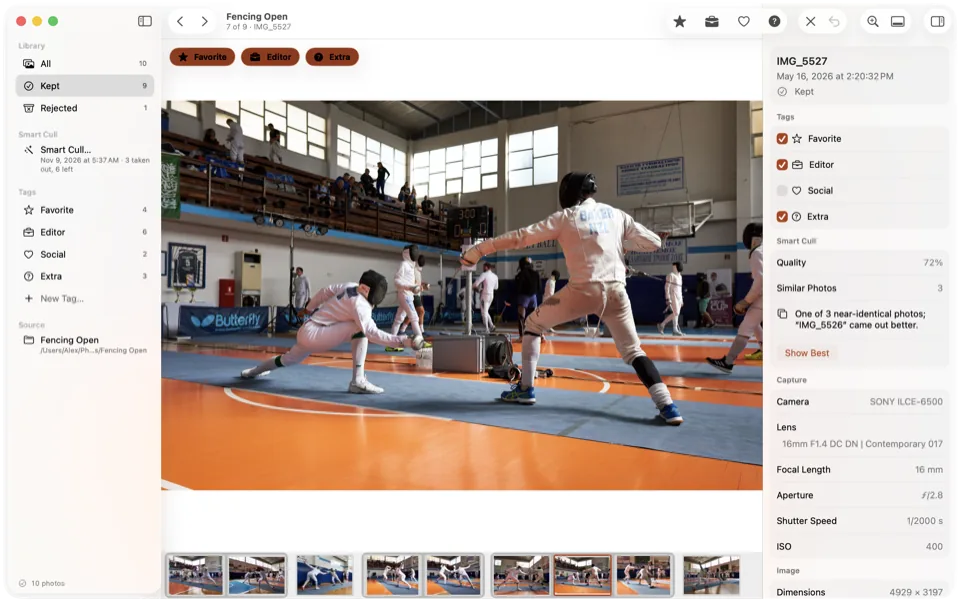
Near-identical frames sit together in the filmstrip. Smart Cull keeps the best of each series, and Show Best jumps straight to it.
- Keep a Number of Photos drops failed shots first, then near-identical copies of a better shot.
- The inspector says why a photo was taken out.
- Press Space to check focus at full resolution.
One key per frame. No waiting.
The next photo is already on screen when you press a key, and holding a key doesn't repeat it — so a long burst can't be rejected by accident.
- X rejects, L marks a Favorite, the arrow keys browse.
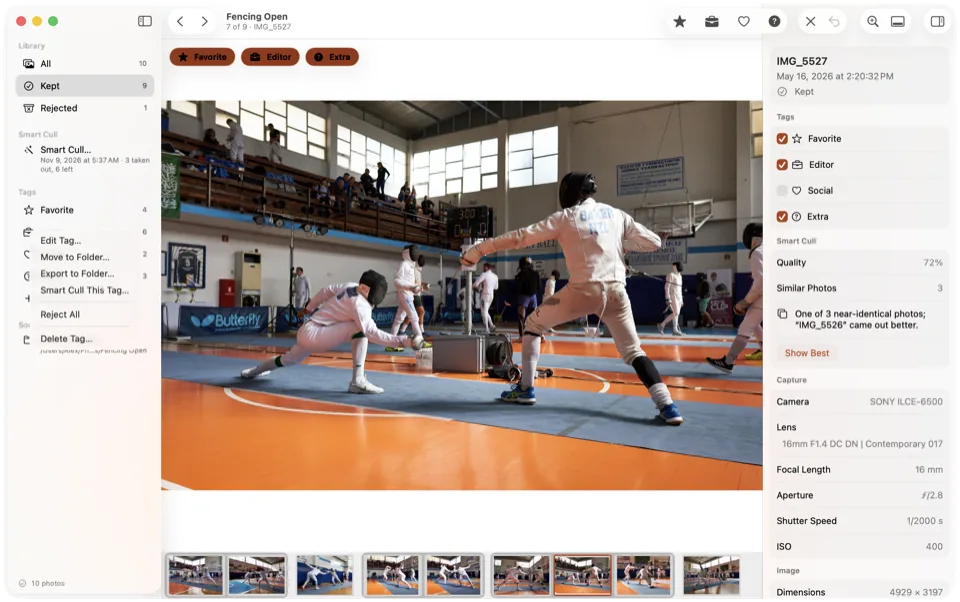
- Make a tag for each delivery — Editor, Social, Portfolio — each with its own key, and a star rating or color label that Photo Mechanic and Lightroom read.
- Shortcuts follow key positions, so they work with any keyboard layout.
Open the card. Start culling.
No import and no catalog: photos appear while Culla is still scanning, in the order they were taken — across folders and cameras.
- Rejected photos move into a hidden folder on the card; nothing is deleted until you ask.
- A RAW file, its JPEG twin and its XMP sidecar always move together.
- Read-only cards are detected, so nothing changes by mistake.

From card to editor in three steps.
Open the card
Insert it and open it in Culla — photos appear while it's still scanning.
Let Smart Cull go first
Remove Failed Shots takes out the blurred frames; Keep a Number of Photos gets each burst down to its best.
Send the picks
Tag the frames for your editor with one key, export the tag's photos to a folder and send them the way you always do.
The whole method, step by step: How to cull photos fast.
Culla for sports, answered.
How does Culla handle long bursts?
It groups near-identical frames into a series in the filmstrip, and Smart Cull can keep the best of each series and take out the rest. Holding a key doesn't repeat Reject, so you can't wipe out a burst by accident.
Can I send photos to my editor from Culla?
Culla doesn't upload anything — it has no network connection at all. Tag the frames you want, export the tag's photos to a folder and send them with the tool you already use. Give the tag a star rating or color label, and Photo Mechanic sees your picks when you caption and transmit there: see Culla vs Photo Mechanic.
Can I cull on an iPad at the venue?
Yes. Culla runs on iPad and iPhone too, and one purchase covers your Mac. Open the card through a card reader in Files, let Smart Cull take out the blurred frames on the device, and export the tag's photos to a folder. Tags and rejects stay on the card for the Mac later. Our guide shows how to cull photos on an iPad.
Which cameras does Culla support?
RAW files from most cameras — RAF, CR3, CR2, NEF, ARW, ORF, RW2 and DNG — plus JPEG and HEIC. RAW decoding is done by macOS, iOS and iPadOS, so support for brand-new cameras arrives with system updates.

Cull the game on the card.
One-time purchase for Mac, iPhone and iPad. Smart Cull included.