How to cull photos on an iPad.
An iPad and a card reader are enough to cull a whole shoot — on a train, in a hotel room or in the car between locations. Here's how to do it right on the card, RAW included, and get home with only the keepers left to edit.
What you need
- A card reader for your iPad's port — USB-C on current iPads. An external disk, or folders on the iPad or in iCloud Drive, work too.
- A culling app that works on the card. Importing a whole shoot first fills up the iPad and takes time; culling on the card leaves only the keepers to copy.
- A backup. If the card is the only copy, copy it to a disk in Files before you start, so a mistake can never cost you a photo.
- A keyboard, if you have one. Not required, but one key per decision is the fastest way to cull on any device.
Which apps can cull photos on an iPad?
Fewer than on the Mac. Most culling apps are desktop software:
- Culla culls right on the card, RAW and JPEG, with Smart Cull taking out the misses on the iPad itself. It's the same app as on the Mac and iPhone, and one purchase covers all three. We make it, so weigh that.
- Lightroom for mobile imports the card into its library first; then you flag and rate photos by swiping. It suits you if your edits live in Lightroom anyway.
- Photos, built into the iPad, lets you pick which photos to import from a card. That's a rough first pass, with no AI to take out the misses and no tags.
- Aftershoot, Photo Mechanic, FastRawViewer and Narrative have no iPad app. Imagen's iPhone and iPad app, Imagen Go, edits photos rather than culling them.
What other apps do is as of November 2026, from their own websites and help pages; each comparison page lists its sources. The steps below use Culla, but the order of the passes works in any app.
Open the card without importing it
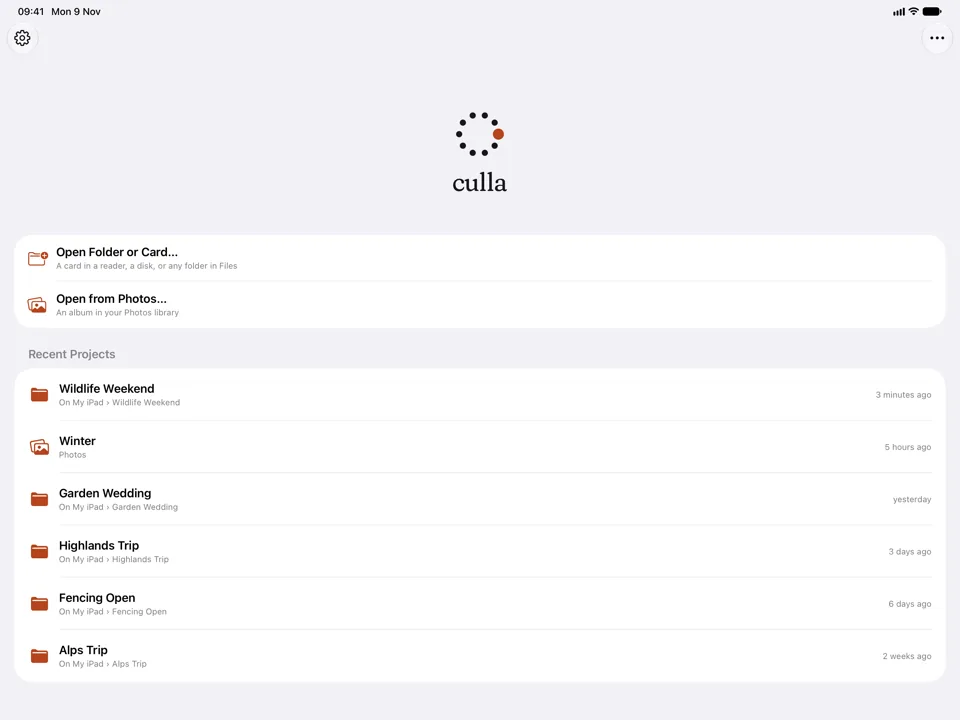
Connect the card reader, then in Culla tap Open Folder or Card… and choose the card in Files. Photos appear while Culla is still scanning, in the order they were taken, so you can start right away.
A RAW file, its JPEG or HEIC twin and its XMP sidecar are one photo, and Culla reads RAF, CR3, CR2, NEF, ARW, ORF, RW2 and DNG. Nothing is copied onto the iPad.
Let Smart Cull take out the misses
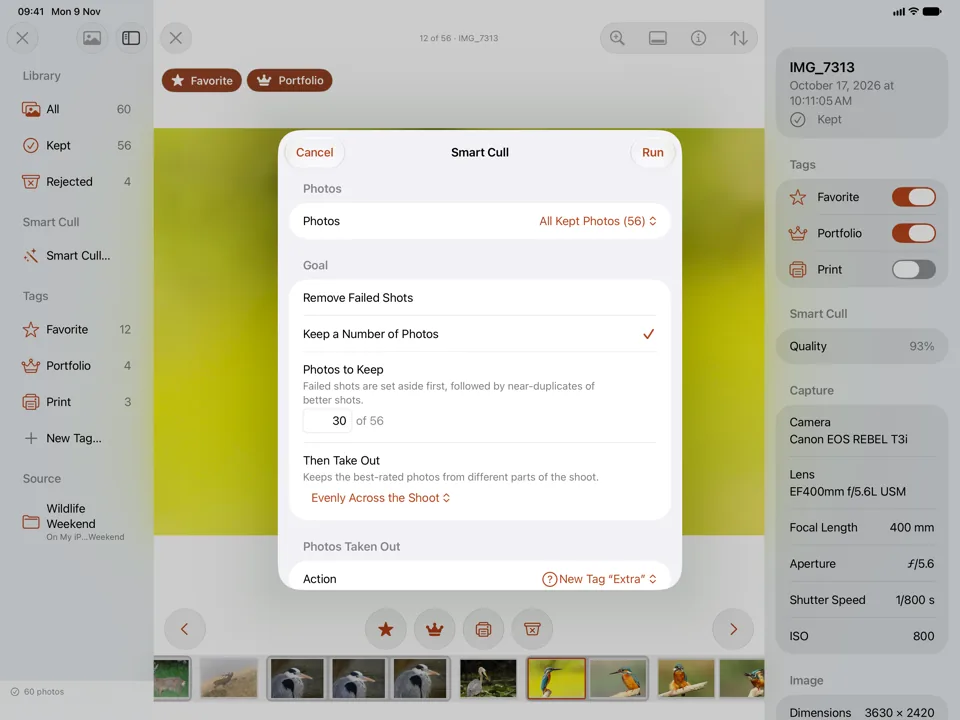
Culla starts analyzing the shoot as soon as it's open, on the iPad, with no internet. Tap Smart Cull… and pick a goal:
- Remove Failed Shots takes out blurred, badly exposed and other clearly poor photos, as strictly as you like.
- Keep a Number of Photos gets the shoot down to the count you ask for — failed shots first, then near-identical copies of a better shot.
It tags or rejects what it takes out, so you can look it over. Shake the iPad to undo the whole run.
Decide with a tap — or a key
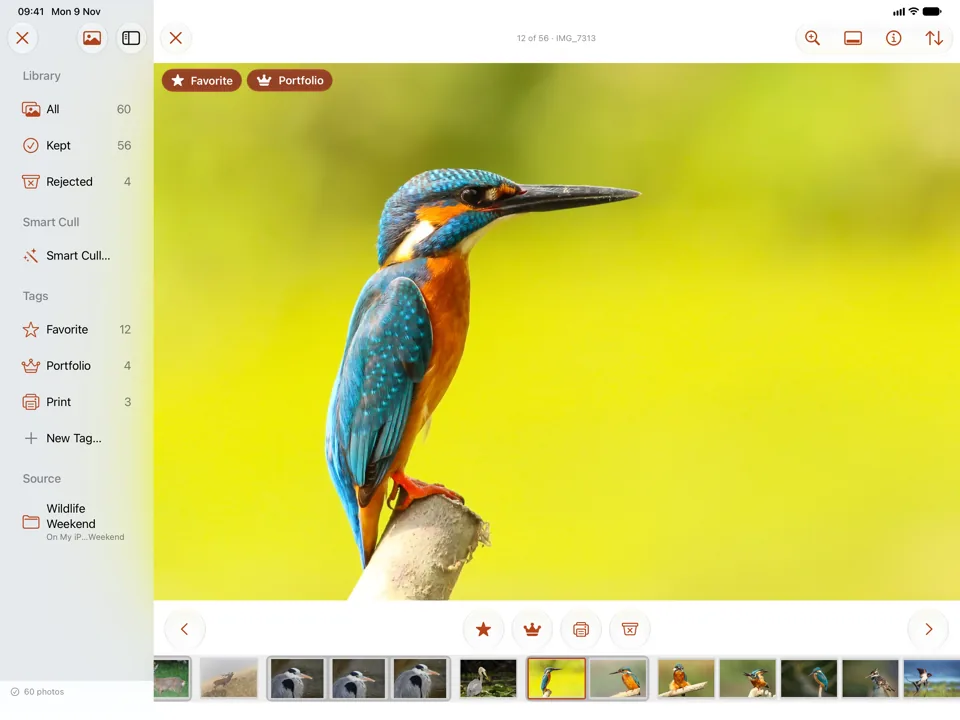
Go through what's left one photo at a time. Reject and your tags are buttons under the photo; to keep a photo, just move on. Swiping only moves between photos, so it never rejects anything by accident.
- Double-tap to zoom in and check focus, and pinch to zoom further. Culla loads the full-resolution image while you look.
- Touch and hold ‹ or › to jump to the first or last photo.
- Shake to undo, and shake again to redo — as many steps as you like.
With a keyboard: the Mac's shortcuts work on the iPad too — X rejects, L marks a Favorite, the arrow keys browse, Space zooms and ⌘Z undoes. They're in the menus at the top of the screen as well.
Keep the best of each burst
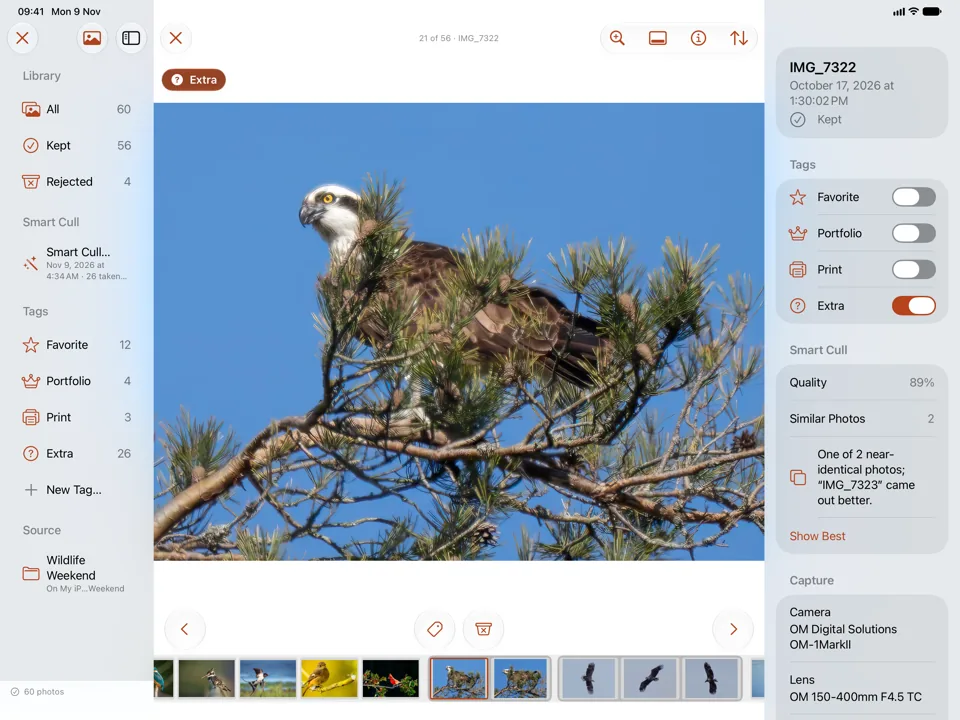
Once Smart Cull has looked through the shoot, each series of near-identical shots sits together in the filmstrip. The inspector (ⓘ) says when another frame of the series came out better, and Show Best jumps straight to it. Keep the sharpest one or two, and reject the rest.
Finish on the Mac, or hand off to your editor
Rejected photos move into a hidden folder on the card, and tags and Smart Cull's results are saved next to the photos. Put the card in your Mac, open it in Culla, and carry on where you stopped.
To bring your picks into Lightroom, Capture One or Photo Mechanic, edit a tag and give it a star rating or color label under In XMP: Culla writes it to the photo's XMP sidecar, and the editor reads it when you import. The rejects stay behind on the card.
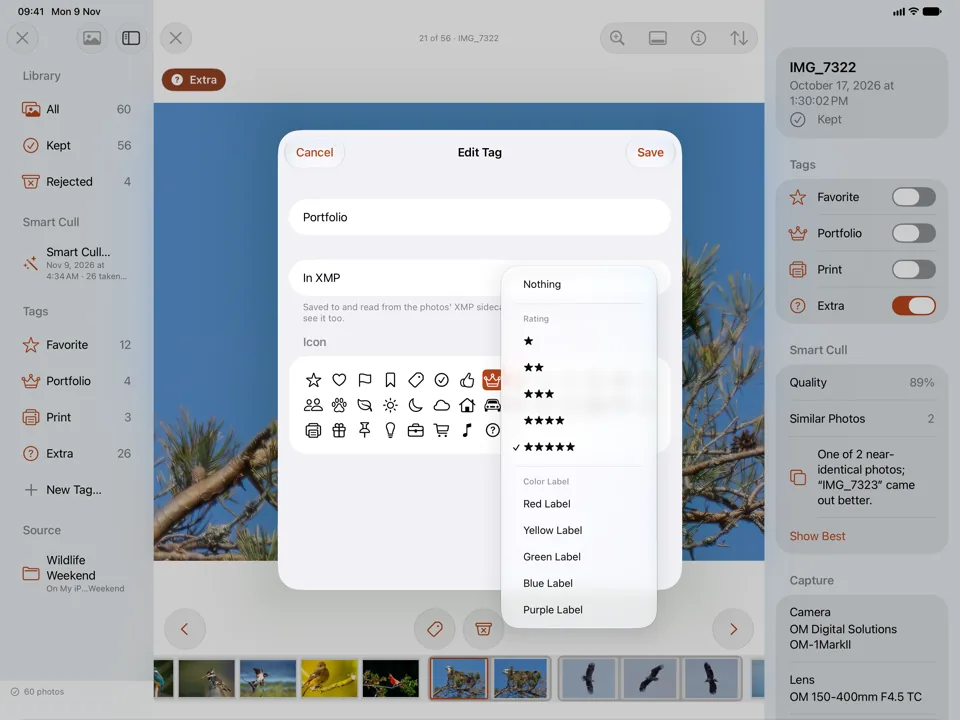
To hand picks to someone else, touch and hold a tag and choose Export to Folder…. When you're sure about the rejects, touch and hold Rejected and choose Delete Rejected Photos Permanently… to free up the card.
Culling on an iPad, answered.
Can you cull RAW photos on an iPad?
Yes. Culla opens RAF, CR3, CR2, NEF, ARW, ORF, RW2 and DNG files straight from the card, plus JPEG and HEIC, and shows the full-resolution image when you zoom in. RAW decoding is done by iPadOS, so support for brand-new cameras arrives with system updates.
What's the best photo culling app for iPad?
It depends on where your photos go next. If you edit in Lightroom and want everything in its library, Lightroom for mobile does the job. If you want to cull on the card before anything is imported, with AI taking out the misses and your cull following the card to the Mac, that's what Culla is for. We make Culla, so try both.
Is there an iPad version of Aftershoot or Photo Mechanic?
No. Aftershoot and Photo Mechanic run on Mac and Windows; Camera Bits says there's no iOS version of Photo Mechanic. See Culla vs Aftershoot and Culla vs Photo Mechanic.
Do I need the internet to cull on an iPad?
Not with Culla. It has no account and never connects to the internet, and Smart Cull runs on the iPad.
Can I start culling on the iPad and finish on the Mac?
Yes. Tags, ratings and Smart Cull's results are saved on the card, and rejected photos stay rejected there. Open the card in Culla on the Mac and carry on. One purchase covers Culla on the iPad, iPhone and Mac.

Cull your next shoot on the iPad.
The same Culla as on your Mac and iPhone, with one purchase.