How to cull photos on an iPhone.
Your phone can cull a whole shoot — a camera's card on the way home, or a weekend of your own shots in Photos. Here's a fast way to do both, one tap per photo, with the obvious misses taken out for you.
Two kinds of culling on an iPhone
Culling means going through every photo and deciding which to keep, before you edit or share anything. On an iPhone it usually means one of two things:
- A camera's memory card, when you travel light and want the shoot sorted before you're back at a computer.
- Your own iPhone photos — a trip, a party, a day of bursts — sitting in an album of your Photos library.
Culla does both the same way. The steps are below; the passes themselves work in any app.
Open a camera's card
Connect a card reader for your iPhone's port — USB-C on iPhone 15 and later, Lightning on earlier models. In Culla, tap Open Folder or Card… and choose the card in Files. Photos appear while Culla is still scanning; nothing is copied onto the phone.
Culla reads RAW files from most cameras — RAF, CR3, CR2, NEF, ARW, ORF, RW2 and DNG — plus JPEG and HEIC. A RAW file and the JPEG the camera saved with it are one photo.
Or open an album from Photos
Tap Open from Photos… and choose an album; the first time, Culla asks for access to your library. An album is culled just like a card, with a few differences that keep your library safe.
- Rejecting a photo only marks it. It stays in your library until you ask Culla to delete the rejected photos.
- The Favorite tag is your library's Favorites, both ways.
- When you delete the rejects, Photos asks you to confirm and moves them to Recently Deleted, where you can recover them for 30 days.
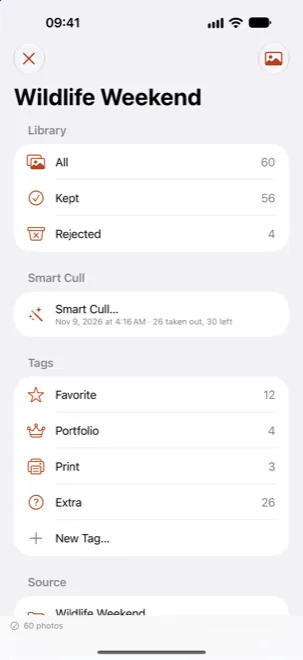
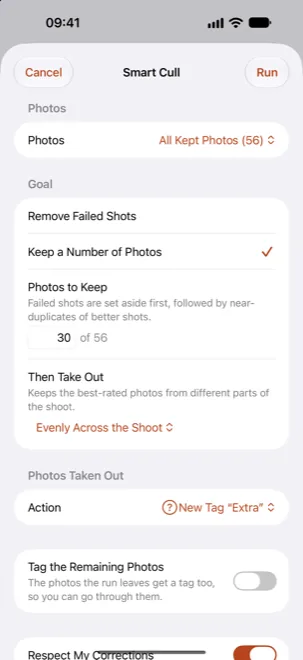
Let Smart Cull take out the misses
Culla analyzes the photos on the phone as soon as you open them — nothing is uploaded. Then tap Smart Cull… in the library and pick a goal.
- Remove Failed Shots takes out blurred, badly exposed and other clearly poor photos, as strictly as you like.
- Keep a Number of Photos gets you down to the number you want — failed shots first, then near-identical copies of a better shot. For photos of people, sharp faces with open eyes count most.
It tags or rejects what it takes out, so you can look it over, and one shake undoes the whole run.
One tap per photo
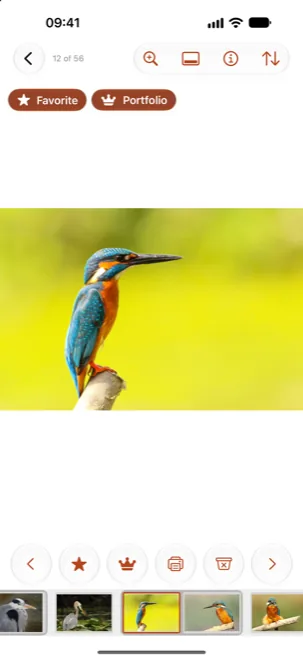
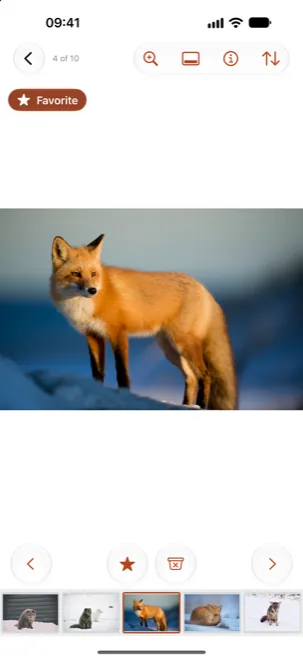
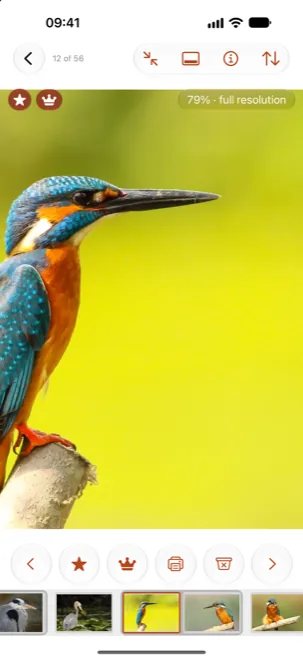
Now go through what's left. Reject and your tags are buttons under the photo; to keep a photo, just swipe on. A swipe only moves between photos, so it never rejects anything by accident.
- Double-tap to zoom in and check focus; pinch to zoom further. Culla loads the full-resolution image while you look.
- Touch and hold ‹ or › to jump to the first or last photo.
- Shake to undo, and again to redo. If shaking does nothing, turn on Shake to Undo in Settings ▸ Accessibility ▸ Touch.
- Turn the phone sideways for a bigger photo; the filmstrip hides itself.
Keep the best of each burst
Near-identical shots are where the time goes. Once Smart Cull has looked through the photos, each series sits together in the filmstrip, and the inspector (ⓘ) says when another frame came out better. Keep the sharpest one or two and reject the rest.
Finish on the Mac or iPad, or hand off
On a card, rejected photos move into a hidden folder and tags are saved next to the photos, so the cull goes wherever the card goes. Open it in Culla on your Mac or iPad and carry on.
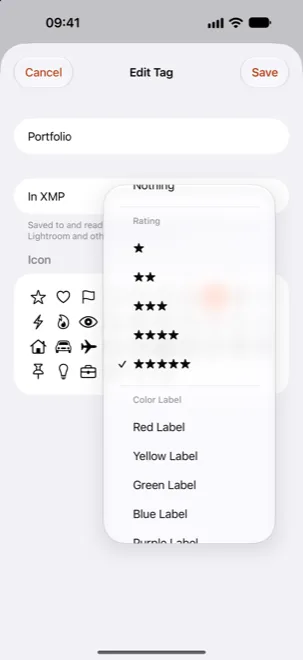
For a card, edit a tag and give it a star rating or color label under In XMP, and Lightroom, Capture One and Photo Mechanic see your picks when you import the card. To hand photos to someone, touch and hold a tag and choose Export to Folder….
Don't delete the rejects until you're sure. Then touch and hold Rejected and choose Delete Rejected Photos Permanently… on a card, or Delete Rejected Photos… in a Photos album.
Culling on an iPhone, answered.
What's the best way to cull photos on an iPhone?
Take out the obvious misses first — blur, bad exposure, near-duplicates — then make one decision per photo and don't go back. Let software do the first pass; in Culla, Smart Cull does it on the phone. Our guide How to cull photos fast walks through the method.
Can I view and cull RAW photos on an iPhone?
Yes. Culla opens RAW files from most cameras straight from the card and shows the full-resolution image when you zoom in. RAW decoding is done by iOS, so support for brand-new cameras arrives with system updates.
Does culling an album delete photos from my library?
Not until you ask. Rejected photos are only marked; Delete Rejected Photos… sends them to Recently Deleted after you confirm, and you can recover them there for 30 days.
Are my photos uploaded anywhere?
No. Culla has no account and never connects to the internet. Smart Cull runs on the iPhone itself.
Do I have to buy Culla again for my iPhone?
No. One purchase covers Culla on iPhone, iPad and Mac.

Cull your next shoot on the iPhone.
One purchase for iPhone, iPad and Mac.