Culla for iPhone — photo culling appCull a whole shoot in your pocket.
Open a camera's card through a card reader, or an album of your own shots in Photos, and decide with one tap per photo. Smart Cull takes out the blurry, the dark and the near-duplicates right on the phone.
Tap to decide. Swipe to move on.
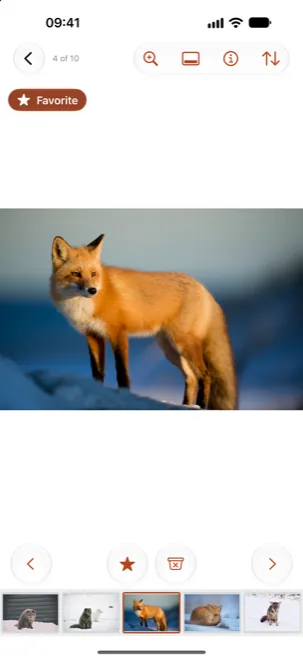
Reject and your tags are buttons under the photo; to keep a photo, just swipe on. A swipe only moves between photos, so it never rejects anything by accident.
- Double-tap or pinch to zoom, and Culla loads the full-resolution image while you look.
- Touch and hold ‹ or › to jump to the first or last photo.
- Shake to undo, and again to redo — as many steps as you like.
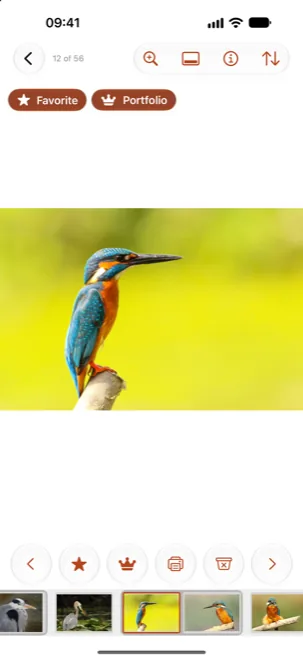
Cull an album from Photos.
Tap Open from Photos… and choose an album — a trip, a party, a day of bursts. It's culled just like a card, with your library kept safe.
- Rejecting a photo only marks it, until you ask Culla to delete the rejects.
- Deleted photos go to Recently Deleted, after you confirm, where you can recover them for 30 days.
- The Favorite tag is your library's Favorites, both ways.
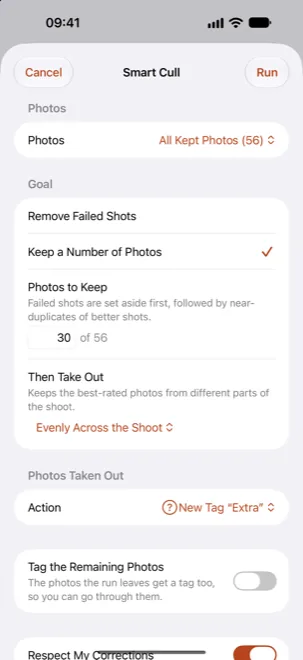
The misses, gone before you start.
Smart Cull analyzes the photos on the phone as soon as you open them — nothing is uploaded — and takes out failed shots and near-identical copies, or gets you down to the number you want.
- Remove Failed Shots takes out blurred, badly exposed and other clearly poor photos, as strictly as you like.
- For photos of people, sharp faces with open eyes count most.
- It tags or rejects what it takes out; one shake undoes the whole run.
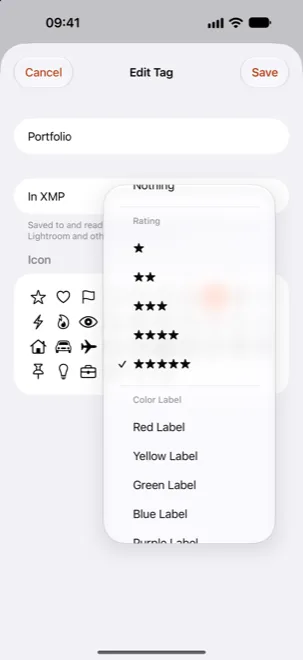
A camera's card, on the way home.
Connect a card reader and open the card in Files. RAW files from most cameras open right on the card, and the cull stays on it — finish on your Mac or iPad.
- A tag can stand for a star rating or color label in the XMP sidecar, so Lightroom, Capture One and Photo Mechanic see your picks.
- Export a tag's photos to any folder in Files.
- One purchase covers Culla on the iPhone, iPad and Mac.
From a full card — or album — to the keepers.
Open a card or an album
Tap Open Folder or Card… for a card in a card reader, or Open from Photos… for an album.
Let Smart Cull go first
Take out the failed shots and near-duplicates, then check what it took out in the filmstrip.
Tap through the rest
One tap to reject or tag, a swipe to keep — then finish on your Mac, or delete the rejects when you're sure.
Step by step, for cards and albums alike: How to cull photos on an iPhone.
Culla for iPhone, answered.
Is it the same Culla as on the Mac and iPad?
Yes — the same app, with the same tags, Smart Cull and safety, and one purchase covers Culla on iPhone, iPad and Mac.
Which iPhones does Culla run on?
Any iPhone with iOS 26 or later. To open a camera's card, connect a card reader for your iPhone's port — USB-C on iPhone 15 and later, Lightning on earlier models.
Can I cull the photos I took with my iPhone?
Yes. Open an album of your Photos library and cull it like a card. Rejected photos are only marked until you delete them, and then they go to Recently Deleted, where you can recover them for 30 days.
Can I cull RAW photos on an iPhone?
Yes. Culla opens RAW files from most cameras straight from the card and shows the full-resolution image when you zoom in. RAW decoding is done by iOS, so support for brand-new cameras arrives with system updates.
Are my photos uploaded anywhere?
No. Culla has no account and never connects to the internet. Smart Cull runs on the iPhone itself.

Cull your next shoot on the iPhone.
One purchase for iPhone, iPad and Mac.