Cull before Lightroom. Import only the keepers.
Lightroom culls what's already in its catalog, and a card has to be copied in first. Culla culls the whole shoot right on the card, on your Mac or iPad, so only the keepers reach Lightroom — already rated. $24.99 once, next to your Lightroom plan, not instead of it.
Culling in Culla and in Lightroom.
| Culla | Lightroom | |
|---|---|---|
| Price | $24.99 once on the App Store — one purchase for Mac, iPhone and iPad | Included with Lightroom plans, from $11.99 a month on an annual plan |
| Where you cull | Right on the memory card, an external disk, any folder or a Photos album | In the catalog, after import; photos on a card are copied in first |
| Before import | The whole cull: zoom, tags, bursts and Smart Cull — then import the keepers | Assisted Culling can run in the Import dialog for a folder and skip rejected images |
| AI culling | Smart Cull takes out failed shots and near-identical copies, or gets the shoot down to the number you ask for | Assisted Culling checks subject focus, eye focus and open eyes, rejects exposure issues and misfires; Auto Stack groups similar shots |
| Rejected photos | Moved into a hidden folder on the card; restore them any time | Flagged in the catalog; rejects can be removed from the catalog or deleted |
| Ratings and labels | A tag can stand for a star rating or color label, written to the XMP sidecar, which Lightroom reads when you import | Flags, star ratings and color labels, kept in the catalog |
| On iPhone and iPad | The whole cull, right on the card, with Smart Cull. Same purchase as on the Mac | Lightroom for mobile: import the card into its library, then flag and rate |
| Editing | No — Culla culls, then hands off | A full RAW editor, with AI masking, Denoise and more |
| Account | None. Culla never connects to the internet | An Adobe account; the subscription is checked online regularly |
| Platforms | Mac, iPhone and iPad: macOS 26 or later on Apple silicon and Intel; iOS and iPadOS 26 or later | Mac and Windows; Lightroom also on mobile and the web |
Add Culla if
- Your catalog fills up with shots you'd never keep.
- You want to decide on the card, before anything is copied.
- You want to zoom in, compare bursts and tag picks before import — not just filter at import.
- You want your stars and color labels already on the photos when Lightroom imports them.
- You'd like to cull on an iPad on location, then import the keepers on your Mac.
Lightroom alone is enough if
- You import everything anyway and like culling in the Library module.
- Assisted Culling's focus and eye checks are all the filtering you need.
- You want flags and ratings to live in your catalog.
- You work on Windows.
Only the keepers reach your catalog.
From a card, Lightroom Classic copies photos in before you can cull them. Culla culls on the card itself: reject the misses, then import the keepers — or export your picks to a folder and import just that.
- Rejected photos move into a hidden folder next to the originals, so they stay rejected wherever you open the card next.
- A tag can stand for a star rating or color label. Culla writes it to the photo's XMP sidecar, so the keepers arrive in Lightroom already rated.
- A RAW file, its JPEG or HEIC twin and its XMP sidecar always move together.
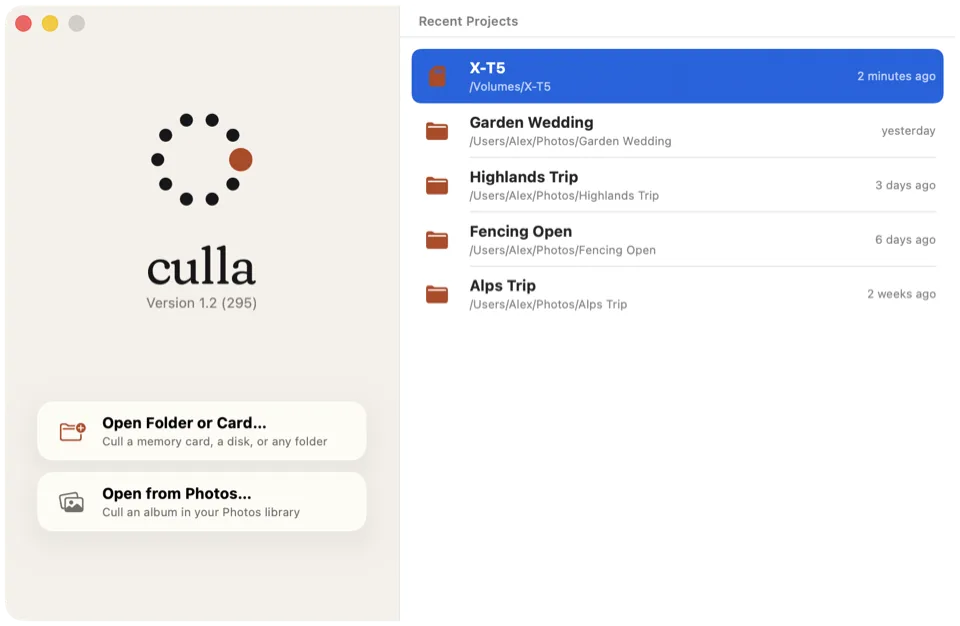
Cull on the iPad. Import on the Mac.
Lightroom on an iPhone or iPad imports a card into its library before you flag and rate. Culla culls the card itself, and the cull stays on the card for Lightroom Classic on your Mac.
Open a memory card in a card reader, a disk or a folder in Files, or an album of your Photos library. Swipe to the next photo, tap to reject or tag, and let Smart Cull take out the misses right on the device.
Back at your Mac, import the card into Lightroom Classic. The rejects stay behind in their hidden folder, and tags that stand for a star rating or color label arrive as ratings and labels. One purchase covers Culla on the Mac, iPhone and iPad.
A first pass on the whole shoot.
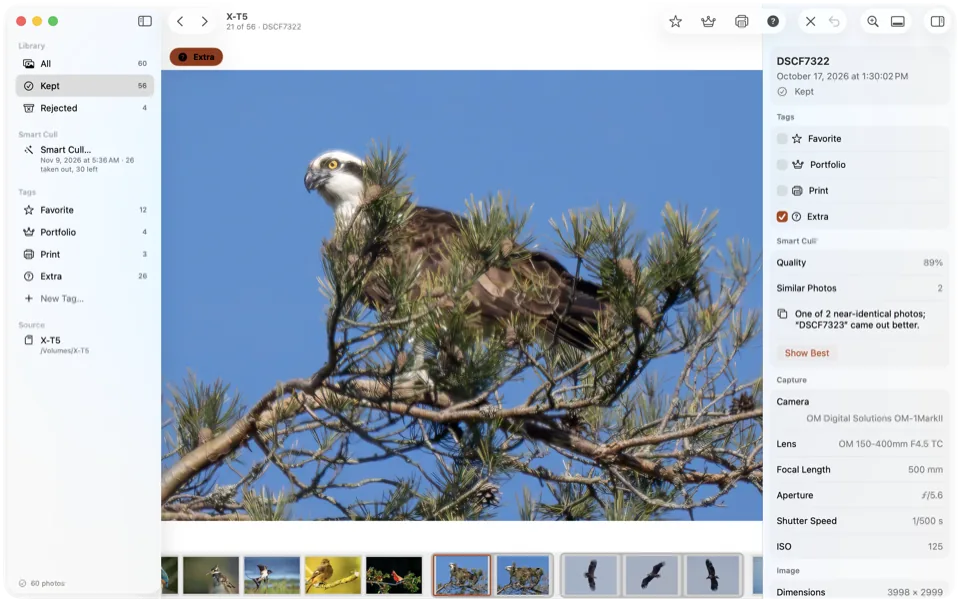
Lightroom's Assisted Culling looks at focus, eyes and exposure. Smart Cull does a first pass too, on your Mac — failed shots, then near-identical copies — before anything reaches Lightroom.
- Remove Failed Shots takes out blurred, badly exposed and other clearly poor photos, as strictly as you like.
- Keep a Number of Photos gets the shoot down to the count you ask for, keeping the best of each series.
- Bursts sit together in the filmstrip, and Show Best jumps to the frame that came out better.
Next to Lightroom, not instead of it.
Culla doesn't edit, and isn't trying to replace Lightroom. It's the step before: $24.99 once for Mac, iPhone and iPad, so your Lightroom plan only ever sees the photos worth editing.
Lightroom stays the place for editing, keywords and your catalog. A smaller import means fewer previews to build, a lighter catalog and fewer misses to scroll past later.
Culla first, Lightroom second.
Open the card in Culla
Insert the card and open it in Culla on your Mac, iPad or iPhone — nothing to import. Photos appear while it's still scanning.
Cull on the card
Let Smart Cull take out the misses, then decide on the rest with one key: X to reject, L for Favorite. Give a tag a star rating or color label for Lightroom.
Import the keepers
Import the card into Lightroom — the rejects stay behind, and the ratings come along. Or export your picks to a folder and import that.
Culla and Lightroom, answered.
Does Culla replace Lightroom?
No. Culla is for culling only: it doesn't edit photos or keep a catalog. Use it before Lightroom, so only the keepers get imported.
Will Lightroom see Culla's tags or rejects?
Its ratings and labels, yes. A tag can stand for a star rating or color label, and Culla writes it to the photo's XMP sidecar, which Lightroom reads when you import. Rejected photos are moved aside into a hidden folder, so they aren't imported at all. Tags without a rating or label stay in Culla.
Isn't Lightroom's Assisted Culling enough?
It may be. Lightroom Classic can run Assisted Culling in the Import dialog for a folder and skip rejected images. Culla is for a full cull before import — zooming in, comparing bursts, tagging picks — right on the card, without copying it first.
Can I cull on an iPad and import into Lightroom Classic later?
Yes. Open the card in Culla on the iPad and cull it there; tags, ratings and rejects are saved on the card. Then import the card into Lightroom Classic on your Mac — only the keepers, with their ratings. One purchase covers Culla on the Mac, iPhone and iPad. Our guide shows how to cull photos on an iPad.
Does Culla run on Windows?
No. Culla runs on Mac, iPhone and iPad: macOS 26 or later on Apple silicon and Intel Macs, and iOS and iPadOS 26 or later.
Lightroom's prices and features as of November 2026, from Adobe's plans, Assisted Culling, import and Lightroom for mobile card import and flag and rate help pages. Culla's price is the US App Store price, one purchase for Mac, iPhone and iPad; it varies by country. Adobe and Lightroom are trademarks of Adobe Inc. Culla isn't affiliated with Adobe.

Cull on the card. Import the keepers.
One-time purchase for Mac, iPhone and iPad. Works with any editor.